First steps
Use a disposable project while exploring. You need Windows x64 and full Revit 2027; native tools need no AI account.
1. Install and confirm
Preserve unsaved work, close Revit normally and follow installation. Open a new PowerShell window:
rthyme --version
Output distinguishes the executing CLI from the registered installation. Launch Revit and find the RevitThyme tab. If either is missing, see troubleshooting.
2. Inspect a view
Open a disposable project and an ordinary plan view. Choose Inspect View on the RevitThyme ribbon. Confirm that the displayed document and view match your project. This is a read-only connection check.

Success means the correct native context is displayed. Installation alone does not qualify every feature on your machine.
3. Try a native utility
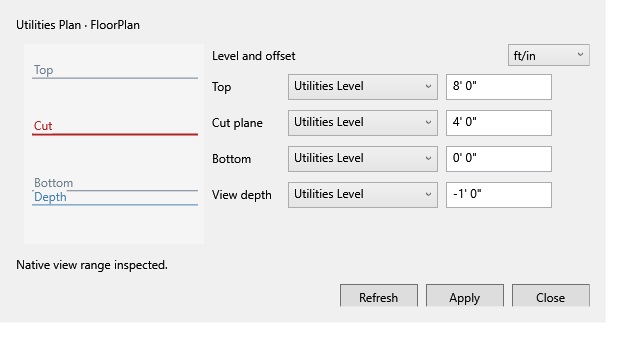
For View Range, open a floor, ceiling or structural plan and select RevitThyme → Views → View Range. Refresh and inspect the four planes and preview. Close without applying to explore safely. On the disposable model, change a valid offset, apply, inspect the native range and use Revit Undo once to restore it. Template-controlled ranges block edits.
For Room Dimensions, use a floor plan with an enclosed rectangular room bounded by four straight basic walls. Select RevitThyme → Annotation → Room Dimensions, choose the room and Preview. Create only after reviewing the pair. See geometry and clearance limits.
4. Try TimberFold
Download TimberFold-physical-test.zip for an original editable six-panel gable example, calibration and DWG/DXF/SVG guides. Open a disposable copy of the RVT, then choose RevitThyme → Fabrication → TimberFold. Confirm scale and physical-inch stock settings, Inspect, resolve blockers and Preview. Generate only after reviewing the preview; it creates native review documentation as one Undo item and never saves the source automatically.
Poll retained runs until terminal; acceptance is not completion. KitReady reports digital checks, while measured thickness/kerf, calibration cutting, joint/web strength and physical assembly remain outstanding. ManufacturingReady is false. Follow the ZIP instructions and TimberFold guide before cutting; use CUT-only files at their physical-inch scale.
5. Choose another interface
- For scripts: use the CLI.
- For an external agent: connect the local MCP server.
- Inside Revit: open the optional Agent panel.
Typed operations do not save, synchronize or close models. Trusted C# is a separate opt-in with broader process permissions. Review security before enabling it.